

ECS Printing
Printing from Baylor Owned Devices
ECS printers are named based on the building, room number, and type.
Example: ROG-112-BW is the black/white printer for Rogers 112.
To install printer for Baylor owned devices:
- Click on the start menu and type \\ecs-printers.baylor.edu then press Enter.
- Double click on the printer you want to install.
- After printing, students may need to release print job by going to Release Print Job.
Please contact ecs_support@baylor.edu for assistance with printing.
Printing from Personal Devices
Students/staff/faculty now have the option to print from a personal device.
The details below should assist you with printing from personal devices using Mobility Print.
Mobility Print Setup
Step 1: Download "Mobility Print".
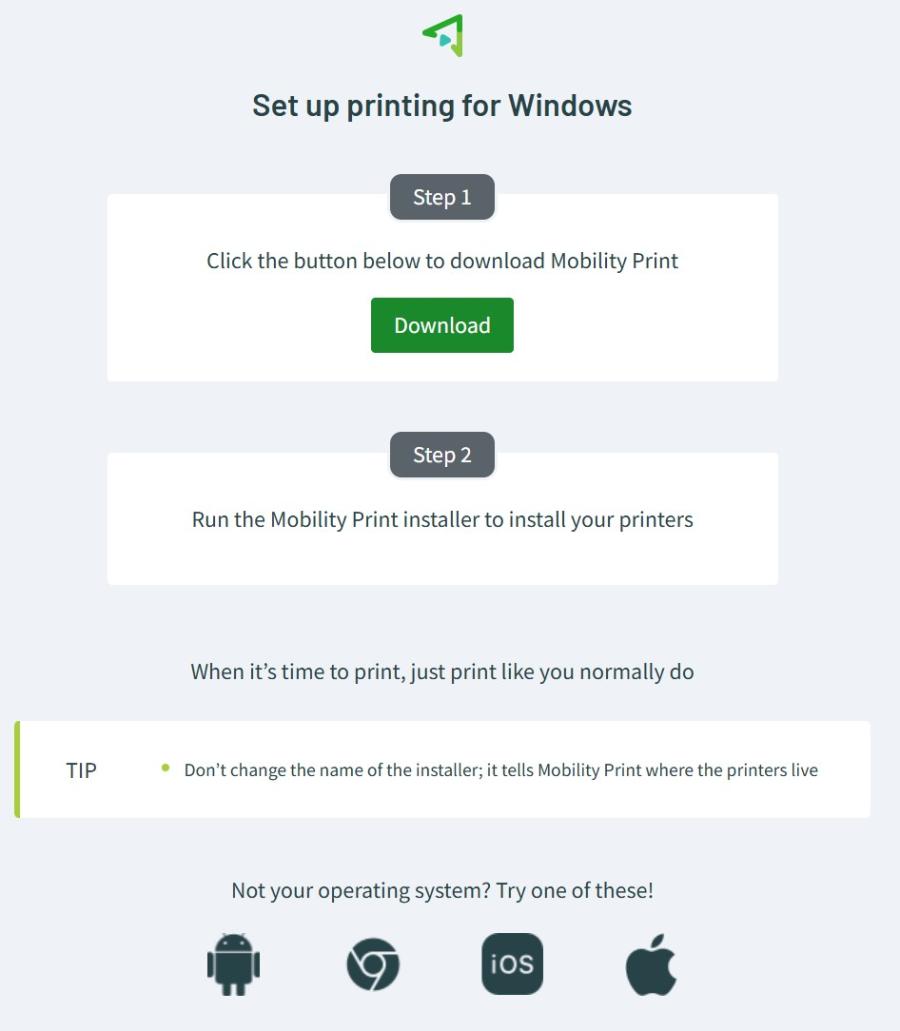
- Click Download Mobility Print. You should receive the site below.
- Click "Download" under Step 1.
- Attention: Do not change the name of the installer.
Step 2: Install "Mobility Print".
- Locate the file in "Downloads" folder and select to install.
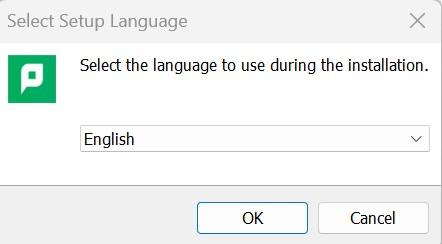
Note: The "Downloads" folder may be different depending on device used. - Setup Language: "English" and "OK".
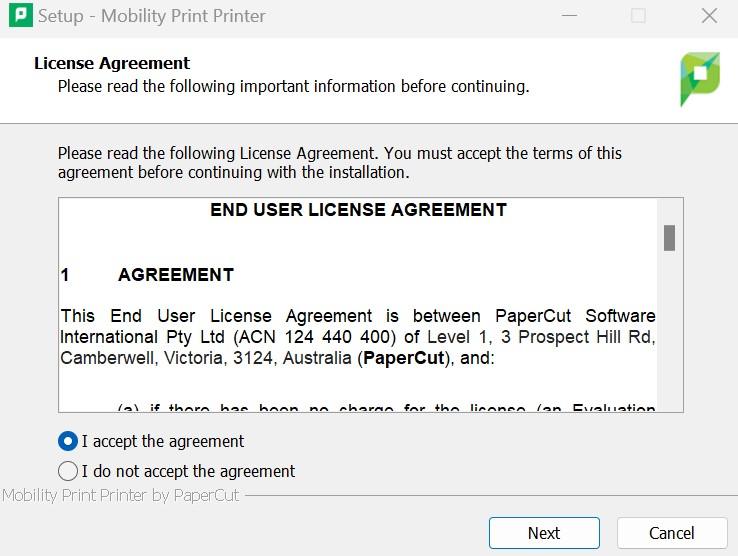
- Accept the license agreement.
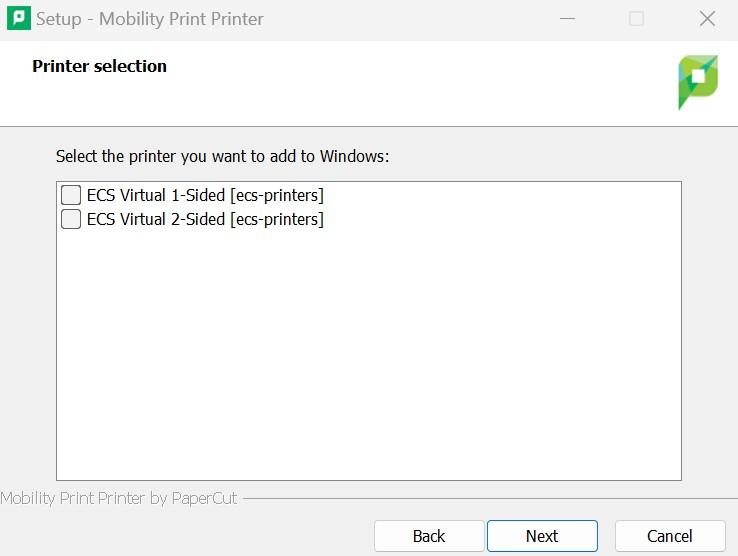
- Select Printers.
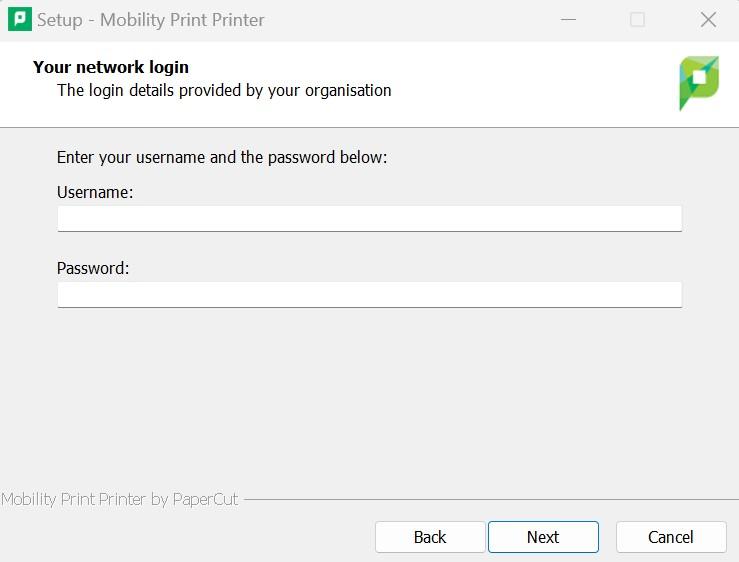
- Enter your BearID/Password.
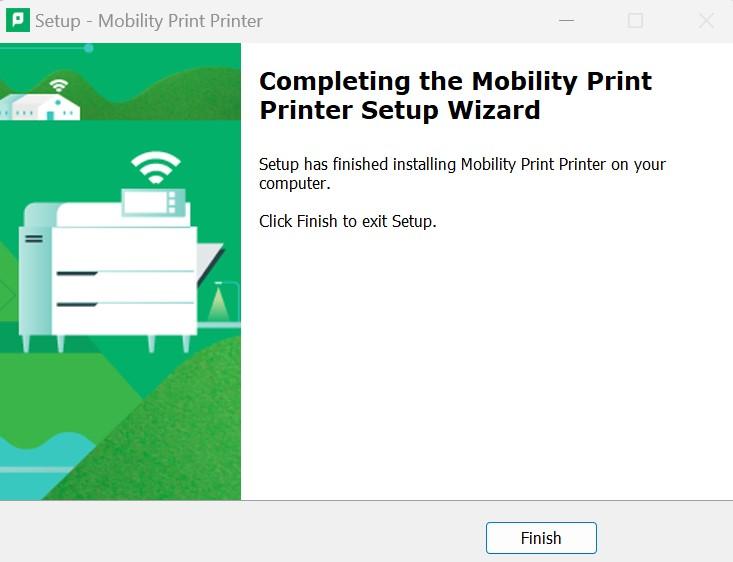
- Select "Finish".
Step 3: You are ready to print.
- Print as you normally would.
- Your printer list should include: ECS Virtual 1-sided and/or ECS Virtual 2-sided.
- After printing, release print job by going to Release Print Job.
*For issues or questions, please contact ECS_Support@baylor.edu.
Happy printing!