

Hotel Reservation
How to Reserve Hotel Space at Rogers/BRIC
ECS Support will continue to work on an easier way to reserve hotel spaces for Rogers and the BRIC.
For now, the steps below will guide you on how to reserve hotel spaces.
Note: We are currently using a separate Outlook calendar for each room.
Note: The example below is for Rogers-200D-Hotel, but instructions are the same for the hotel space you need.
Step 1: Select the Calendar View Within Outlook.
- Usually, calendar view is located on the left side of Outlook near the top.

Step 2: Create a New Calendar Item.
- Click on “New Meeting” at the top.

Step 3: Enter the Reservation Details.
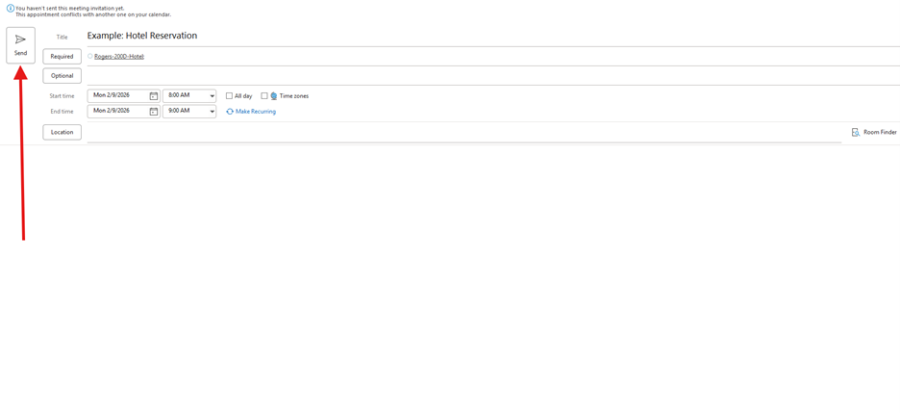
View screenshot example below.
- Title: Add a title.
- Required: Enter hotel office you want to reserve. Use hotel office guide below.
- Date/time: Select the date and time for hotel office reservation.
- (Optional) - Setup as recurring. View arrow on screenshot below.
- (Optional) - Remove text from "Location" and "Teams Meeting" information.

Step 4: Verify Hotel Office Details.
- Ensure hotel office details are correct.
Step 5: Click “Send” at the top.
Step 6: View Meeting on Calendar.
- Calendar manager will approve the hotel office space reservation. After approval, it will show on calendar.
The hotel spaces available for Rogers and the BRIC are listed below.
Rogers Hotel Spaces.
Rogers-200D-Hotel
Rogers-200E-Hotel
Rogers-220.04-Hotel
Rogers-220.08-Hotel
Rogers-220.12-Hotel
Rogers-220.14-Hotel
Rogers-300A-Hotel
Rogers-300D-Hotel
Rogers-300E-Hotel
Rogers-300H-Hotel
Rogers-301A-Hotel
Rogers-301D-Hotel
BRIC Hotel Spaces.
BRIC-2108.05-Hotel
BRIC-2112.02-Hotel
BRIC-2112.03-Hotel
BRIC-2112.05-Hotel
BRIC-2118.03-Hotel
BRIC-2118.04-Hotel